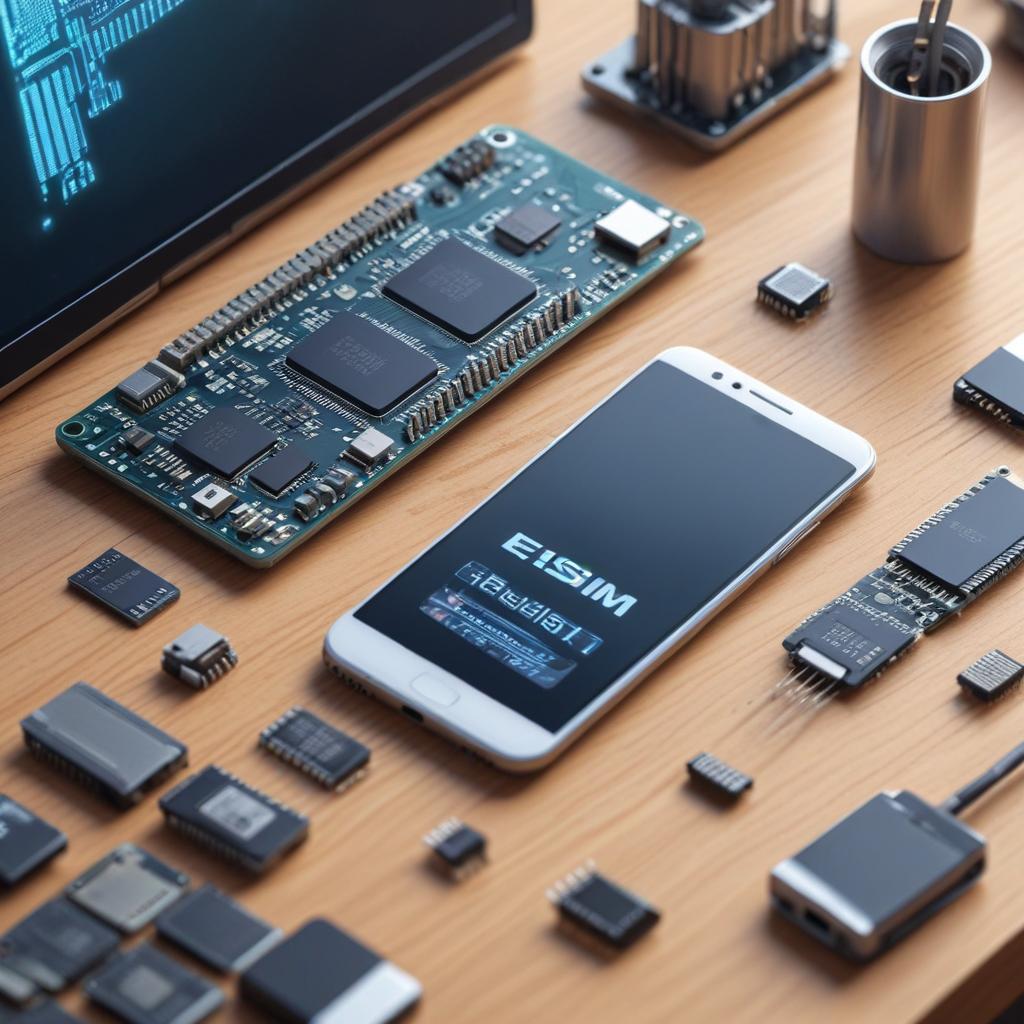
Steps to prepare your device for eSIM
17/12/2025
A key advantage of eSIMs is the ability to store multiple profiles on a single device. This means you can run several carrier plans—or keep them ready for activation—without juggling physical SIM cards. Whether you need separate work and personal numbers or want to switch to local providers while abroad, having a range of profiles at your fingertips boosts convenience and expands your connectivity options.
Activation of mobile plans using eSIMs is faster and more convenient. Instead of physical SIM cards that must be shipped or collected in a store, eSIMs let carriers provision your service remotely. You can immediately download and enable your plan with a QR code or carrier app, reducing wait times and eliminating the need for physical SIM swaps.
In short, eSIM’s benefits—its flexibility, support for several profiles, and easy activation—make it a strong choice for mobile connectivity. Whether you’re a frequent traveler, managing several numbers, or just looking to streamline your mobile service, eSIM offers a seamless and efficient experience.
Preparing Your Device for eSIM Activation
Before activating your eSIM, ensure your device is properly prepared to achieve a smooth installation. This means verifying compatibility, reviewing activation steps, and adjusting specific eSIM settings. Consult these steps to get your device ready for eSIM activation.
- Check Device Compatibility: Not all devices support eSIM technology. Start by confirming that your smartphone, tablet, or smartwatch is eSIM-compatible. Visit the manufacturer’s website or consult your device manual to verify this. Ensure your device’s operating system is up to date, as software updates may include important support for eSIM features.
- Update Your Device Software: An updated operating system is often necessary to properly manage eSIM profiles and settings. Navigate to your device’s settings menu and look for system updates. Download and install any available updates to ensure your device can handle the latest eSIM capabilities.
- Prepare Your eSIM Settings: Access the cellular or mobile data section in your device settings. Familiarize yourself with the eSIM or “add cellular plan” option, which will be crucial when activating your eSIM. Some devices may require you to enable a toggle or configure network settings before proceeding with activation.
- Confirm Activation Prerequisites: Contact your carrier or service provider to understand any specific requirements needed for activation. This may include having an active account, purchasing an eSIM plan, or obtaining a QR code or activation code. Having these prerequisites ready will streamline the activation process and avoid delays.
- Backup Important Data: Although activating an eSIM should not affect your personal data, it is good practice to back up essential information before making changes to your device’s network settings. Use cloud services or local backups to secure your contacts, photos, and other crucial data.
- Disable Any Existing Physical SIMs Temporarily: Depending on your device and carrier, you may need to remove or temporarily disable an existing physical SIM card to prioritize eSIM activation. Consult your device instructions or carrier support to clarify this, especially if you plan to use the eSIM as your primary line.
- Ensure Stable Internet Connection: An active internet connection via Wi-Fi or cellular data is often necessary when downloading your eSIM profile during activation. Check that your device is connected and has sufficient signal strength to avoid any interruptions during the process.
By carefully following these steps, you properly prepare your device for eSIM activation. This comprehensive preparation includes all necessary compatibility checks, activation criteria, and eSIM configuration, ensuring a seamless transition to your new eSIM line.
Check Device Compatibility
Before proceeding to activate an eSIM, it is essential to verify that your gadget supports the technology. Because eSIM support is not available on every model, checking compatibility beforehand is necessary. You will typically find that the newest smartphones, tablets, and smartwatches from top manufacturers include this feature.
To find out if your device supports eSIM, you can either go to the manufacturer’s official website or refer to the user manual. Typically, manufacturers include comprehensive specifications that indicate if a device model is compatible with eSIM. Pay attention to phrases such as “eSIM support” or “dual SIM with eSIM.” If the details are not obvious, you can search for your device model along with “eSIM compatibility” on trusted tech websites for further clarification.
An alternative method to check compatibility is by accessing your device’s settings. For instance, on numerous smartphones, head to Settings > Cellular or Mobile Data, and look for an option to add a cellular plan or eSIM. If you find this option, it’s likely that your device is eSIM compatible. Furthermore, carriers often publish lists of devices that are compatible with their eSIM services, so visiting your carrier’s website can also help verify if your device model is suitable for eSIM.
To sum up, verifying that your device is eSIM-compatible is essential. Check manufacturer documentation, explore device settings, and consult carrier compatibility lists to find devices that work with eSIM. This will help facilitate a seamless setup experience and prevent any unexpected issues when you attempt to activate your eSIM.
Backup Important Data
Before diving into eSIM activation, make sure to fully back up your device’s contents. This step ensures your data remains secure throughout the process. Switching to an eSIM involves system-level changes that, while rare, could lead to unexpected data loss or require a factory reset. Safeguarding your information in advance minimizes the risk of losing important contacts, photos, files, or app data.
Backing up your data is a simple yet effective way to safeguard the information on your device. Using cloud services such as iCloud on iOS or Google Drive on Android enables automatic off‑site storage. In addition, creating a local backup on your computer with iTunes or similar tools adds another layer of protection. Storing your data in several places reduces the chance of complete loss.
Implementing these safety measures prior to enabling your eSIM safeguards your device’s information and offers reassurance. Should you face any technical difficulties during the process, using your most recent backup to restore your device will allow you to return to normal functioning swiftly. Keep in mind that performing a basic data backup is among the simplest yet most crucial steps to guarantee a seamless and secure eSIM installation experience.
Enable Network Settings
Prior to activating your eSIM, it is essential to update and enable the correct network settings on your device. This step facilitates a seamless eSIM activation process, enabling your device to connect effectively to your mobile network. Begin by going to the network settings area within the device’s system preferences or settings application. Search for options pertaining to mobile network or cellular connectivity.
Make sure your mobile network settings are set to automatically select available carriers, or manually select the appropriate carrier as needed by your service provider. This helps avoid connectivity problems after the eSIM is activated. Certain devices might need you to turn on dual SIM capabilities or add a new cellular plan in the network settings menu while preparing for eSIM activation.
Furthermore, ensure that data roaming is activated if you intend to utilize your eSIM while abroad. Turning off airplane mode and checking that your device’s network configuration is set to LTE, 5G, or the highest standard supported by your provider can enhance the chances of successful activation. Additionally, maintaining the device’s firmware up to date further enhances network compatibility and efficiency.
Carefully overseeing these network configurations minimizes the chances of mistakes when activating your eSIM. Having a correctly set up mobile network along with activated cellular settings ensures that your device can safely download and register the eSIM profile with your carrier without any disruptions.
Activating Your eSIM on the Device
After you have set up your device for eSIM, the next crucial step is to activate the eSIM on that device. This process typically entails installing the eSIM profile given by your carrier, which often involves scanning a QR code or adhering to the setup instructions from your carrier. Below, you will find a comprehensive guide to assist you in successfully completing the eSIM activation procedure.
-
Access Your Device Settings: Launch the settings application on your smartphone or tablet. Go to the area focused on mobile or cellular connections. This is usually identified as “Cellular,” “Mobile Data,” or “Network & Internet.”
-
Locate eSIM or Add Cellular Plan Option: In the cellular settings, search for the option to either add a new cellular plan or manage eSIM profiles. You may find it labeled as “Add Cellular Plan,” “Add eSIM,” or “Mobile Plans.”
-
Scan the QR Code Given by Your Carrier: Your carrier will supply you with a QR code for eSIM activation. Choose the option to scan the QR code, then utilize your device’s camera to read the code. Ensure you have a reliable internet connection at this stage to enable the device to download and set up the eSIM profile.
-
Follow the On-Screen Carrier Setup Directions: Once the scanning is complete, your device might ask you to adhere to further setup steps given by your carrier. This may involve verifying plan information, selecting a primary line for calls and data, or rebooting your device for the updates to be applied.
-
Confirm eSIM Setup and Activation: After installation, ensure that the eSIM is functioning by reviewing your cellular status. Your device should indicate the carrier name and display signal strength. Additionally, you can test successful eSIM activation by checking data connectivity and making a call.
-
Manage Your eSIM Profiles: Within the cellular settings, you have the ability to handle several eSIM profiles, provided your device is compatible. You can toggle between different profiles, assign new names for easier recognition, or delete plans when needed.
-
Troubleshoot and Reach Out to Carrier Support if Necessary: If the eSIM activation fails to complete, reboot your device and attempt to scan the QR code once more. Verify with your carrier that your eSIM profile is active and that you have the accurate QR code or activation information.
By following these guidelines, you can make sure that your eSIM activation is seamless, enabling you to take advantage of various carriers or plans on one device without relying on physical SIM cards. The secret to a swift eSIM activation lies in accurately scanning the QR code and following the carrier’s setup instructions, so have those ready while you set it up.
Obtain the eSIM Activation Details
To ensure a hassle‑free eSIM installation on your device, obtain the correct activation details from your carrier. Typically, this will be a QR code or a string of letters and numbers that lets your device automatically download and apply the eSIM profile. Begin by contacting your carrier through their support line, website, or mobile app.
Many service providers have a specific area in their online portal for activating eSIMs. After your verification is complete, you will receive a QR code, which is the typical and easiest method to activate your eSIM. This QR code includes all the essential information needed to link your device to the carrier’s network. If you lack a QR code scanner, the carrier may also provide details like the SM-DP+ address, activation code, and confirmation code for you to input manually in your device settings.
Ensuring that all activation information is correct and current is crucial. If you have a physical card featuring the QR code, take care not to damage it, as it contains your eSIM activation information. A digital version sent to your email or available through the carrier’s app is equally acceptable. Before you start the installation process, verify that your device is compatible with eSIM and that you have a reliable internet connection to download the profile after entering the activation details.
By adhering closely to your carrier’s guidelines and securely handling your activation information—be it a QR code or carrier details—you can swiftly finish the eSIM installation and start reaping the advantages of a versatile mobile connection without needing a physical SIM card.
Scan the QR Code or Enter Activation Manually
To finalize your eSIM configuration, you must either scan the QR code or input the activation code given by your carrier. This process is essential as it associates your device with the eSIM profile, allowing for cellular connectivity without the need for a physical SIM card.
Begin by accessing the cellular settings on your device, then choose the option to add a new eSIM plan. Most devices provide a feature to scan a QR code—this is the easiest and most prevalent method. With your phone’s camera, position it to align with the QR code shown by your carrier on your display. After scanning, the device will automatically retrieve the activation details and set up the eSIM profile. Make sure your camera is focused clearly on the QR code for a successful scan.
Should the QR code scan fail for any reason or if you choose to activate manually, you can opt for the manual activation method. In this case, you’ll need to enter the activation code along with other information supplied by your carrier, including the SM-DP+ address or activation code. Make sure to input each detail precisely as provided to prevent any mistakes during the eSIM configuration. After finishing, verify the information and continue with the installation.
Regardless of whether you opt for scanning the QR code or activating manually, adhering to these guidelines guarantees that your device is ready for eSIM functionality. Always have the activation code accessible and check your connection post-setup to ensure that your eSIM is completely functional.
Verify eSIM Activation and Connectivity
After finishing the eSIM installation, it’s crucial to check for activation confirmation to make sure your device is operational. Start by opening the settings app on your device, then find the “Cellular” or “Mobile Data” section. In this area, you will see information regarding your eSIM status. A successful activation confirmation usually shows a status such as “Active,” “Connected,” or your carrier’s name alongside the eSIM plan.
Next, verify your network connection. Ensure your device is linked to a cellular network by observing the signal bars or the network symbol in the status bar. You might also consider turning airplane mode on and off to reset the connection. If your device shows “No Service” or lacks a network signal, this may suggest a problem with activation or connectivity that requires troubleshooting.
You can also verify your eSIM status by making a test call or sending a text message. If the call connects or the message is delivered, it indicates that your eSIM is successfully activated and working. Furthermore, check your cellular data settings to confirm that the mobile data from your new plan is active and functioning properly.
Should you face any problems like activation errors or a missing network connection, try rebooting your device or reaching out to your carrier for assistance. It’s essential to verify that your eSIM status is accurately shown and that your network connection remains steady to maintain seamless mobile service on your device.
Understanding eSIM Technology

eSIM technology, or embedded SIM, signifies a major leap in mobile connectivity. In contrast to traditional SIM cards, which are tangible chips placed inside a device, an eSIM is a virtual SIM integrated into your device’s hardware. This built-in SIM removes the necessity for a physical card, enabling users to set up a cellular plan without the hassle of changing SIM cards or managing any physical parts.
The eSIM overview emphasizes its function in making mobile network connections easier for consumers. Since it is built into the device, the eSIM can hold various network profiles, allowing users to change carriers or plans remotely via software. This integrated SIM technology not only improves convenience but also fosters a more efficient and adaptable mobile experience.
A key advantage of the digital SIM is the convenience it offers for managing mobile connectivity. For those traveling, an eSIM makes it simple to download a local carrier’s plan swiftly, eliminating the need to go to a store or buy a physical SIM card. Moreover, devices that support eSIM technology provide dual SIM capabilities, allowing users to maintain both a personal and a work number on one device without the inconvenience of handling several SIMs.
Unlike traditional SIM cards, embedded SIMs are more durable and secure. Because the eSIM is built directly into the device, it can’t be lost or damaged through handling. Since activation and carrier changes happen digitally, the risk of SIM‑swap fraud is reduced. This electronic approach also cuts waste by decreasing the production and disposal of physical SIM cards.
To sum up, the embedded SIM, or eSIM, serves as a contemporary substitute for traditional SIM cards, providing advantages such as flexibility, ease of use, and improved security thanks to its digital format. It integrates the future of mobile connectivity right into your device, allowing for better management of cellular plans and elevating the overall user experience.
What is an eSIM?
An eSIM, or embedded SIM, is an innovative technology that takes the place of conventional physical SIM cards in today’s devices. Unlike standard SIM cards, which are detachable plastic cards that hold your subscriber details, an eSIM is a digital SIM card integrated right into the device’s hardware. This ensures that the eSIM cannot be taken out or misplaced, as it is incorporated within the internal parts of the device.
The concept of an embedded SIM goes beyond mere physical integration; it encompasses how it handles mobile network profiles. An eSIM enables users to download and retain various digital SIM profiles from different providers without the hassle of changing physical cards. This streamlines the experience of changing carriers or managing several phone numbers on a single device, making it especially beneficial for frequent travelers or individuals seeking adaptable mobile plans.
When it comes to functionality, the digital SIM card in a device that supports eSIM operates much like a traditional SIM card by supplying the required credentials for connecting to a cellular network. The difference lies in its ability to be programmed remotely, allowing for updates and modifications to occur effortlessly over the air without needing user action. This enhanced convenience and increased security position eSIM technology as an essential element in numerous contemporary smartphones, tablets, and wearable gadgets, facilitating a more efficient and cohesive mobile experience.
Advantages of Using eSIM
The eSIM offers numerous benefits that is becoming a more favored option for mobile device users. A key advantage of eSIM technology is the unparalleled flexibility it offers. In contrast to conventional SIM cards, an eSIM is integrated directly within the device, enabling users to change carriers or plans without needing to replace the card physically. This adaptability makes it easier to handle your mobile service, particularly while traveling or experimenting with various carriers.

I’m a lifelong traveler who fell in love with the freedom that eSIM technology offers. Exploring new places while staying seamlessly connected has become my personal mission, and I love sharing practical tips on managing mobile data abroad. When I’m not testing the latest eSIM platforms, I’m mapping out the next adventure.