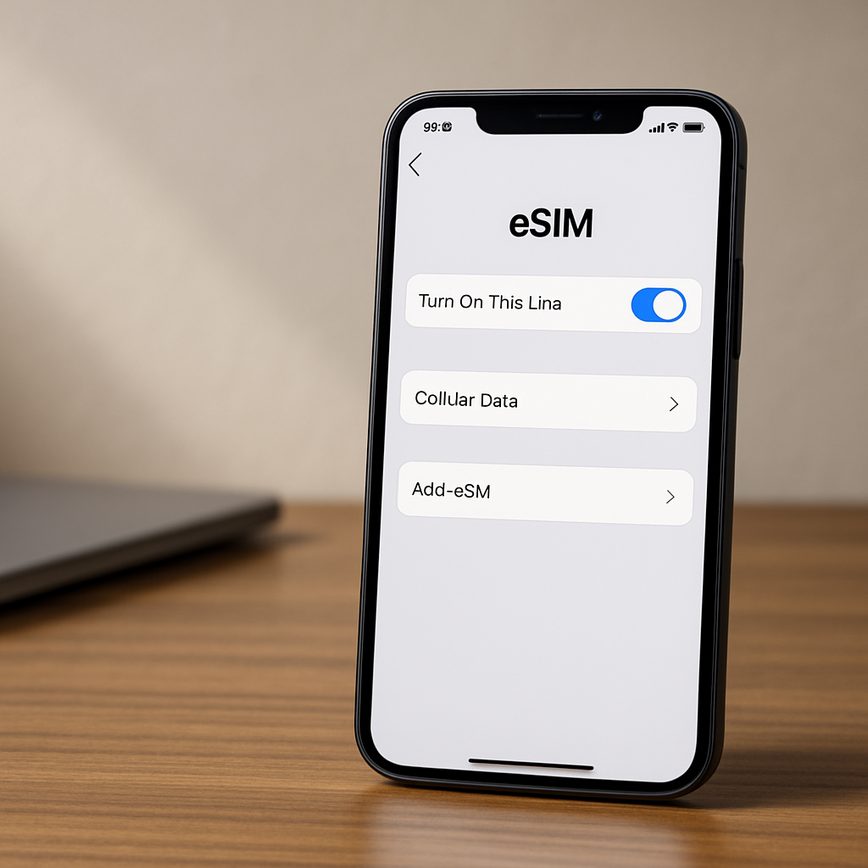
Understanding device settings for eSIM
16/05/2026
Introduction to Device Settings for eSIM
eSIM, short for embedded SIM, is a revolutionary technology that eliminates the need for physical SIM cards in mobile devices. Unlike traditional SIM cards, an eSIM is built directly into the device’s hardware, allowing users to activate mobile plans digitally. This advancement provides greater flexibility, convenience, and security for mobile users worldwide.
Understanding device settings is crucial when it comes to utilizing eSIM technology effectively. Since the eSIM is integrated into the device, managing mobile configuration involves navigating through specific settings menus to activate, deactivate, or switch between carriers without swapping physical cards. This level of digital control requires users to familiarize themselves with their device’s operating system and its eSIM management options.
Proper knowledge of device settings helps users maximize the benefits of eSIM technology, such as the ability to store multiple mobile profiles on a single device and to switch networks seamlessly while traveling. Additionally, understanding how to configure these settings ensures that the mobile connection remains stable and secure, helping to avoid interruptions in service or potential security risks.
In summary, eSIM represents a significant step forward in mobile technology, and its full potential can only be realized through an informed approach to device settings. By grasping the basics of eSIM and mobile configuration, users can enjoy a more convenient, flexible, and efficient mobile experience.
What is an eSIM?
An eSIM, or embedded SIM, is a digital SIM technology that is built directly into a device, eliminating the need for a physical SIM card. Unlike traditional SIM cards, which are small removable chips inserted into mobile devices to connect to cellular networks, an eSIM is integrated within the device’s hardware. This embedded SIM allows users to activate mobile network plans without having to physically swap out SIM cards.
The eSIM definition emphasizes its role as a programmable SIM that can store multiple network profiles digitally. This capability means users can switch carriers or plans remotely through software settings, offering greater convenience and flexibility. For example, travelers can easily add local mobile data plans without purchasing and inserting new SIM cards when they arrive in a different country.
Furthermore, the digital SIM and embedded SIM technologies enhance device design possibilities by saving space within phones, tablets, and wearables. They also improve security because the SIM is harder to remove or tamper with compared to physical SIM cards. Overall, an eSIM represents a significant evolution from the traditional SIM card by making connectivity more seamless, flexible, and integrated with modern digital lifestyles.
Benefits of Using eSIM
One of the greatest eSIM benefits is the flexibility it offers to users. Unlike traditional SIM cards, which require physical swapping when changing carriers or plans, eSIM technology allows seamless switching directly through device settings. This ease of switching carriers means users can quickly adapt to new networks without waiting for SIM delivery or visiting a store, enhancing convenience especially during travel or when exploring better service options.
Another significant advantage of eSIM is the improved design it enables for devices. Without the need for a physical SIM card slot, manufacturers can create slimmer, more compact devices with better water and dust resistance. This contributes not only to enhanced durability but also to a more modern and sleek look in smartphones, tablets, and other connected gadgets.
Moreover, eSIM provides unparalleled support for multi-device usage. Users can have multiple eSIM profiles stored on a single device, allowing them to switch between personal and business numbers or between local and international carriers effortlessly. This multi-device capability adds a layer of convenience and control over mobile connectivity, making it easier to manage multiple lines without carrying extra SIM cards.
Overall, the key eSIM benefits—flexibility, ease of switching carriers, and improved device design—make it a revolutionary technology that enhances how users stay connected in a modern, mobile world.
Configuring eSIM on Different Devices
Configuring eSIM on your smartphone involves accessing the device settings and following specific steps to activate and manage your eSIM profile. Whether you’re using an iOS or Android device, the setup process requires attention to detail to ensure a smooth eSIM activation. Here’s a guide on how to perform eSIM configuration on popular device types, focusing on smartphone settings and device setup.
For iOS devices, such as iPhones running iOS 12.1 or later, eSIM activation is integrated into the native settings. Start by opening the Settings app and navigate to Cellular or Mobile Data. Here you will see an option to Add Cellular Plan. Tap this, and you can either scan a QR code provided by your carrier or manually enter the details supplied for your eSIM plan. Once added, the device will recognize the new eSIM and activate it automatically. You can manage multiple eSIM profiles from the same menu under Mobile Data Plans.
For Android smartphones, the exact steps may vary slightly depending on the manufacturer and Android version, but the general process remains consistent. Access your device’s Settings and head to Network & Internet or Connections. Look for the section labeled SIM cards or Mobile Network. Within this menu, select Add mobile plan or Add eSIM. You can then scan a QR code or manually enter activation information to configure your eSIM. After this, the device will prompt you to activate the plan, completing the eSIM activation.
During the device setup, ensure that your smartphone is connected to Wi-Fi or cellular data to communicate with carrier servers for eSIM activation. Both iOS and Android provide options to label and switch between multiple eSIM profiles, making device management easier if you use eSIM for travel, personal, or work purposes.
In summary, mastering eSIM configuration on your smartphone requires navigating to the respective cellular or network settings and either scanning a QR code or entering carrier details manually. With these straightforward steps, you can activate and manage your eSIM seamlessly, harnessing the full power of digital mobile connectivity.
Setting Up eSIM on iOS Devices
Setting up an eSIM on your iOS device is simple and convenient. This step-by-step guide will help you with iOS eSIM setup, iPhone eSIM configuration, and managing Apple eSIM settings smoothly.
- Open the Settings app on your iPhone or iPad.
- Tap on Cellular or Mobile Data, then select Add Cellular Plan.
- Use your device’s camera to scan the QR code provided by your carrier, or manually enter the details if prompted.
- After scanning or entering the plan information, tap Add Cellular Plan to confirm and add the eSIM profile to your device.
- Once added, go back to the Cellular or Mobile Data settings, and you will see the new eSIM plan listed. Tap on it to set your preferences, such as labeling the plan or choosing a default line for calls and data.
- To activate your eSIM, make sure the switch next to the plan is toggled on. You can also disable or remove eSIM profiles from this menu whenever needed.
- Manage your Apple eSIM settings by customizing network selection, enabling data roaming, or setting your preferred line for messaging.
- For multiple eSIM profiles, switch between them easily within the Cellular or Mobile Data settings without needing to physically swap SIM cards.
Following these instructions ensures a smooth iPhone eSIM configuration, making your transition to eSIM technology on iOS devices quick and hassle-free.
Managing eSIM Settings on Android Devices
Setting up and managing an Android eSIM is a straightforward process, allowing users to switch between multiple cellular plans on their Android phones with ease. To begin, ensure your Android phone supports eSIM functionality and is connected to a stable internet connection.
To enable an eSIM on your Android device, go to the Settings app and select “Network & Internet” or “Connections” depending on your phone model. From there, choose “Mobile Network” and then find the option to add a new eSIM. You’ll typically need to scan a QR code provided by your carrier or enter activation details manually to download the eSIM profile to your device.
Switching between eSIM profiles on Android phones is simple. In the mobile network settings, you can view all the active eSIM profiles. Select the profile you want to use and set it as your preferred line for calls, texts, and data. Many Android devices allow you to assign different profiles for data and voice usage to optimize your connection according to your needs.
Configuring Android device settings for eSIM also involves naming each profile for easy identification and managing data usage per profile. Additionally, you can enable or disable specific eSIM profiles without deleting them, giving you flexibility in managing multiple lines on one device.
Overall, the Android eSIM setup provides a seamless way to handle multiple cellular plans from a single device, making it ideal for frequent travelers and users looking to simplify their mobile connectivity through Android device settings.
Troubleshooting and Best Practices for eSIM Settings
When it comes to eSIM troubleshooting, users often encounter several common device issues that can disrupt connectivity. One frequent problem is the failure to activate the eSIM profile correctly. This can happen due to network restrictions, incorrect QR code scanning, or software glitches within the device. Another typical issue involves difficulties switching between eSIM profiles or reverting to a physical SIM card, which can lead to temporary loss of connectivity.
To address these challenges, it’s essential to follow eSIM best practices rigorously. First, always ensure your device’s software is up to date; manufacturers frequently release updates that improve eSIM compatibility and bug fixes. Before adding an eSIM, verify that your carrier supports eSIM functionality and that your device is unlocked if switching networks. Properly scan and save the activation QR code or input details manually if needed to avoid activation errors.
Connectivity problems can also arise due to conflicting network settings or multiple active profiles on the eSIM. To maintain smooth operation, regularly check your cellular settings and deactivate any unused profiles. Restart your device after making changes to eSIM settings to allow connections to refresh and stabilize. Additionally, when traveling, confirm that your eSIM plan supports roaming to prevent unexpected service interruptions.
In case of persistent device issues, performing a network settings reset can often resolve unseen conflicts without removing the eSIM entirely. If problems continue, contact your carrier’s support service for assistance with account settings or possible server-side restrictions. Keeping a backup of your eSIM activation information is also advisable for quicker recovery and reinstallation when necessary.
By understanding these common problems and implementing eSIM best practices, users can enjoy seamless connectivity and the full advantages of eSIM technology. Staying informed about updates, monitoring your settings, and proactive troubleshooting will minimize disruptions and enhance your mobile experience.
Common eSIM Activation Issues
Activation errors are among the most frequent eSIM problems users encounter. These errors often stem from incompatible devices, incorrect QR code scans, or outdated carrier settings. Ensuring your device supports eSIM technology and verifying that the QR code is scanned correctly can often resolve these issues swiftly.
Connection issues during activation can also arise due to weak or unstable internet access. A stable Wi-Fi connection is recommended for a smooth eSIM setup process. If connection problems persist, restarting your device or switching networks may help re-establish the link with the carrier’s server.
Another common problem is carrier-related errors, such as the eSIM profile not downloading or activating properly. This situation might require contacting your carrier to ensure your plan is correctly provisioned and compatible with eSIM activation. Carrier apps or support lines can provide targeted assistance for resolving such problems.
To avoid prolonged activation delays, always keep your device’s software updated. Manufacturer and carrier updates frequently address bugs related to eSIM functionality. By following these practical solutions, users can overcome typical activation errors, minimize eSIM problems, and enjoy seamless connectivity.
Optimizing eSIM Performance on Your Device
To ensure the best connectivity and battery life, there are several performance tips you can follow for eSIM optimization. First, keep your device’s software updated regularly, as manufacturers often release improvements that enhance eSIM management and signal reception.
Next, monitor your network settings and remove any old or unused eSIM profiles. Multiple active profiles can sometimes cause unnecessary background activity, draining your battery faster and affecting overall performance. Only keep the active eSIM profiles that you truly need.
Adjust your device’s network preferences to prioritize the most reliable carrier when multiple options are available. This reduces the time your device spends searching for signals, which conserves battery life and improves connectivity stability. For dual-SIM devices, it’s useful to designate your eSIM as the primary data line if it offers better coverage.
Additionally, disabling automatic network selection and manually choosing a carrier can help maintain a stable connection, especially in areas with fluctuating signals. Remember to regularly restart your device to refresh the network connection and clear temporary glitches that might affect eSIM performance.
Implementing these device settings and performance tips will maximize your eSIM’s efficiency, ensuring smooth connectivity without compromising your device’s battery life.

I’m a lifelong traveler who fell in love with the freedom that eSIM technology offers. Exploring new places while staying seamlessly connected has become my personal mission, and I love sharing practical tips on managing mobile data abroad. When I’m not testing the latest eSIM platforms, I’m mapping out the next adventure.